Answer WhatsApp messages (Meta Cloud API)
A step-by-step guide with pictures, from the Speakvora agent's own Connect tab.
Short answer: Customers message your business WhatsApp number and the agent answers, without Twilio. Time: 45 to 60 minutes the first time, mostly clicking through Meta's pages. Replies within 24 hours of a customer's message are free; Meta charges for other messages, so check Meta's current pricing.
Every key, number and name in the pictures is a made-up example. Nothing here asks you to share a real key with anyone but the app on your own computer.
Customers message your business WhatsApp number and the agent answers, without Twilio. Time: 45 to 60 minutes the first time, mostly clicking through Meta's pages. Replies within 24 hours of a customer's message are free; Meta charges for other messages, so check Meta's current pricing.
This guide was written from a real setup. Meta changes its pages often, so a button may be named slightly differently.
Before you start
- A Facebook account, and a Meta business portfolio (Meta creates one if you do not have it).
- This agent running with a public web address (Settings, Your business details, Public address). WhatsApp only talks to an address on the internet.
- A privacy policy page and a terms page on your website (Meta asks for both before an app can receive real messages).
- A phone with WhatsApp to try it.
Step 1. Register as a Meta developer
- Go to developers.facebook.com and press Get Started (top right).
- Accept the terms and confirm your phone number with the code Meta sends.
Step 2. Create the app
- Open My Apps and press Create App.
- Type an App name (for example "My business agent") and check the contact email. Press Next.
- On Add use cases choose the Business messaging filter and tick Connect with customers through WhatsApp. Press Next.
- Choose your business portfolio and press Next, then Next again on Requirements.
- On the Overview press Create app. Meta asks you to re-enter your Facebook password: this is normal.
Step 3. Get the test number and details
- On the app dashboard press Customize the Connect with customers through WhatsApp use case.
- In the left menu open Basic setup, Step 1. Try it out and press Continue (this agrees to Meta's WhatsApp terms). Meta gives you a free test number that can message up to 5 numbers.
- Under the test number note two values: Phone Number ID (1) and Messaging account ID (2) (also called the WhatsApp Business Account ID). Press the copy icon next to each.
- Press Generate token (3).
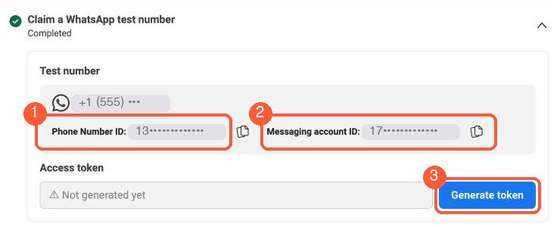
YOU SHOULD SEE: the Access token box, which said Not generated yet, fills with a long line of letters. Copy it right away.
If a pop-up appears, confirm it. Copy the token. It lasts about a day, which is fine to test with. For real use create a permanent token (see "Going live").
WARNING: The token is like a password. Do not post it anywhere. If it ever leaks, press Generate token again: the old one stops working.
- Under "Send a message from your test number" add your own WhatsApp number as a recipient and confirm the code Meta sends.
- Open App settings, Basic, press Show next to App secret (Meta asks for your password), and copy it.
Step 4. Connect the agent
- In the agent open Connect, WhatsApp Business.
- Paste the access token, Phone Number ID, WhatsApp Business Account ID and App secret. Press Save and test.
- It says it connected to your number and then shows a callback address and a verify token. Keep this window open.
Step 5. Tell WhatsApp where to send messages
- In Meta open Basic setup, Step 2. Production setup and expand Configure Webhooks.
- Paste the callback address and the verify token from the agent and press Verify and save. A green tick appears next to Configure Webhooks.
- In the Webhook fields list find messages and switch Subscribe on.
Step 6. Publish the app (needed to receive real messages)
An unpublished app only gets Meta's test messages, never real ones, even from your own phone.
- In the left menu open App settings, Basic and fill in: App domains (your website, for example
example.com), Privacy policy URL, Terms of Service URL, User data deletion (a Data deletion instructions URL, your privacy page is fine), and Category (Business and pages). Press Save changes. - Open Publish in the left menu. When it says all required settings are complete press Publish.
Step 7. Try it
- From the WhatsApp number you added as a recipient send "what are your hours" to the test number.
- The agent answers within a few seconds. In the agent, Calls and texts shows the conversation.
- If nothing arrives, press Save and test in the agent again: it subscribes your app to your WhatsApp account, which Meta requires. Make sure the WhatsApp Business Account ID is filled in.
Going live with your own number
- Your number cannot already be on the normal WhatsApp or WhatsApp Business app; add it under Step 2. Production setup, Register your WhatsApp phone number.
- Replace the one-day token with a permanent one. Open [[Meta Business Settings > Users > System users]] (1). Pick your system user, or press Add to make one. Press Generate token (2), choose your app, tick whatsapp_business_messaging and whatsapp_business_management, press Generate, copy the token and paste it into the agent's Access token box.

WARNING: Make the system user's access Employee level, not Admin, and tick only the two WhatsApp permissions. A permanent token never expires, so guard it.
- Verify your business with Meta (Step 3. Business verification) to raise sending limits.
- Add a payment method if you will send messages outside the 24-hour reply window.
Good to know
- The agent answers inside the 24-hour window. Starting a conversation outside it needs a Meta-approved template; the agent does not send templates yet.
- Voice calls are not handled yet. Meta has a separate WhatsApp calling feature that this agent does not use.
- WhatsApp messages stay in WhatsApp; they do not become SMS.
- Treat the access token and app secret like passwords.
If something is wrong
- Save and test says the token is not accepted or expired: the test token lasts about a day. Press Generate token in Meta again, or make a permanent token (see Going live), and paste it.
- The test works but customers get no answer: Meta must know where to send messages. Repeat Step 5 and check the Callback URL and the Verify token match what the agent showed.
- Meta says the app must be published: do Step 6 (publish the app) before expecting real customer messages.
- Only 5 numbers can message the test number: that is a Meta limit for the free test number. Add your own number under Going live.
- Still stuck? In the agent press Connect, then Download report, and email it to support. It never contains keys.
All help guides · Every agent feature · AI receptionist by industry
Questions
What if this happens: Save and test says the token is not accepted or expired?
the test token lasts about a day. Press Generate token in Meta again, or make a permanent token (see Going live), and paste it.
What if this happens: The test works but customers get no answer?
Meta must know where to send messages. Repeat Step 5 and check the Callback URL and the Verify token match what the agent showed.
What if this happens: Meta says the app must be published?
do Step 6 (publish the app) before expecting real customer messages.
What if this happens: Only 5 numbers can message the test number?
that is a Meta limit for the free test number. Add your own number under Going live.
What if this happens: Still stuck??
In the agent press Connect, then Download report, and email it to support. It never contains keys.