Tell your team in Microsoft Teams
A step-by-step guide with pictures, from the Speakvora agent's own Connect tab.
Short answer: The agent posts a message to a Teams channel whenever something needs your team: a customer asks for a person, a build fails, an incident starts, a payment problem. Time: about 15 minutes the first time. Cost: nothing beyond the Microsoft 365 plan you already have (or its free trial).
Every key, number and name in the pictures is a made-up example. Nothing here asks you to share a real key with anyone but the app on your own computer.
The agent posts a message to a Teams channel whenever something needs your team: a customer asks for a person, a build fails, an incident starts, a payment problem. Time: about 15 minutes the first time. Cost: nothing beyond the Microsoft 365 plan you already have (or its free trial).
This uses a Teams workflow, so you need Microsoft Teams from a work or school Microsoft 365 account. The free personal Teams that comes with a personal Microsoft account cannot create these.
Before you start
- A work or school Microsoft 365 account with Teams. If you do not have one, Microsoft 365 Business Basic includes Teams (about $7 a month paid yearly, or about $8.40 month to month). Microsoft also offers a free first month with a card: choose Try for free, keep With Teams selected, and remember to cancel before the month ends if you do not want to keep it (admin.microsoft.com, Billing, Your products, Cancel subscription).
- You must be able to add a workflow to the channel. Owners of a team always can.
- A new Microsoft 365 account can take 15 minutes to an hour before everything (Teams, Outlook) is ready. If Teams shows errors in the first hour, wait and try again.
Step 1. Make the channel (skip if you have one)
- Open Teams (teams.microsoft.com, or the Teams app) and sign in with your work account.
- In the left bar press Teams, then Create team (or Join or create a team), then From scratch.
- Choose Private (only people you add can see it) and name it, for example "Alerts team".
- Press the three dots (···) next to the team name, choose Add channel, name it alerts, and press Add.
One workflow posts to one channel. If you want different alerts in different channels, make one workflow per channel and use the one you want in the agent.
Step 2. Add the workflow that receives the agent's messages
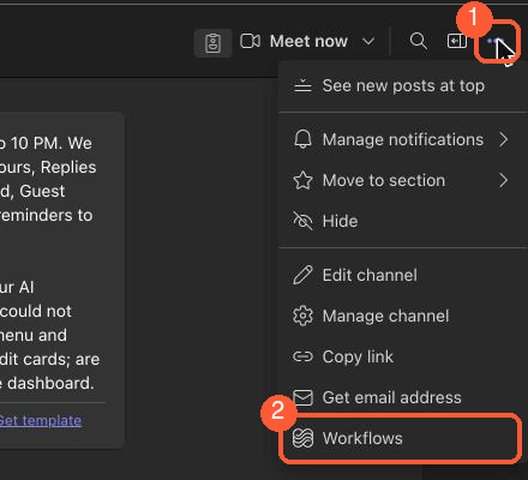
- Open your alerts channel and press the three dots (1) at the top right of the channel, then choose Workflows (2). (If you cannot find it: press Apps in the left bar, search for Workflows, and open it.)
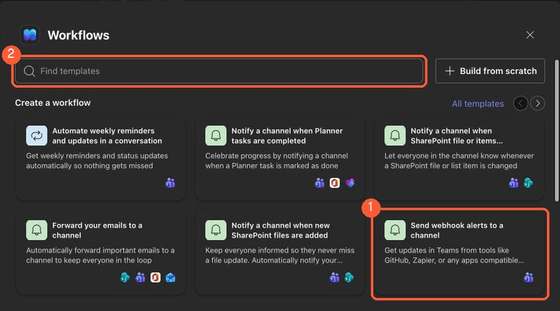
- A window called Workflows opens. The template you need, Send webhook alerts to a channel (1), is usually on the first screen. If you do not see it, type webhook in the Find templates box (2).
- Choose Send webhook alerts to a channel. Microsoft's older name for it was "Post to a channel when a webhook request is received". Pick this exact one. Do not pick "from specific people" or "from people in an org" (they block the agent), and do not pick "to a chat" (that posts to a chat, not a channel).
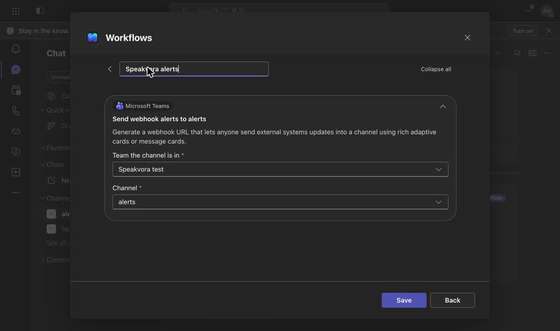
- Give it a name such as Speakvora alerts. If Teams asks you to sign in or to connect "Microsoft Teams", accept: that lets the workflow post as you.
- On the same screen choose the team and the channel (for example Speakvora test and alerts), then press Save (some versions say Add workflow or Next).
- Teams shows a page that says the workflow was created and shows a web address that starts with
https://. Press the copy icon next to it. Keep this page open until you have pasted it.
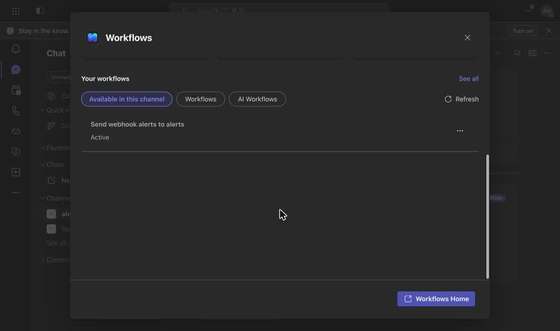
If you close the page before copying, open Workflows again, find your workflow under Your workflows (it shows as Active), open it and copy the address again.
Step 3. Paste it into the agent
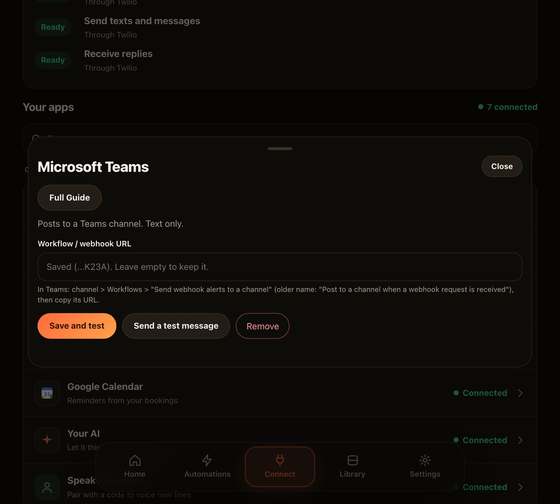
- In the agent open Connect, then Microsoft Teams.
- Paste the web address into Workflow / webhook URL. It is saved on your computer only; the agent never shows it again after you save, only its last characters.
- Press Save, then Send a test message. The result should turn green, and within a few seconds a card appears in your Teams channel that says "Test message from your voice agent's agent. If you can read this, Teams works."
Step 4. Check that real alerts reach it
- Open Your agent and press Explore ready-made automations. Anything that says tells your team now posts to Teams (and to Slack if you connected it too).
- In Test my agent, under "Or something happens in your business", choose for example "A customer asks for a manager" and press Try it. The test shows what would be posted. Nothing is sent while the agent is in practice mode.
- When you press Go live, those messages start arriving in your channel. You can also trigger one on purpose: have your app send the event, or use the Test panel on a live agent.
What you will see in Teams
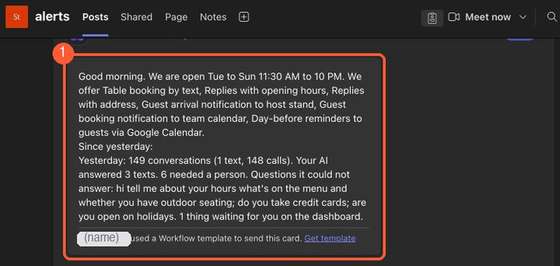
- Each alert is a small card with the text, for example "Build FAILED: your-repo main" or "A customer asked for a manager: Ann +1 646 555 0101. Please call them back."
- At the bottom of each card Teams adds a line such as "Name used a Workflow template to send this card". That is Microsoft's own label for workflow messages and cannot be removed. The name shown is the person who created the workflow.
- Messages are text only. They do not have buttons.
If something goes wrong
- "Workflows" is not in the menu: your Teams may be the free personal version, or your admin has turned workflows off. Ask your Microsoft 365 admin to allow Power Automate workflows in Teams, or use a work account.
- The test fails with a 4xx error: the web address was copied incompletely, or the workflow was deleted or turned off. Open Workflows, check it is On, copy the address again and paste it again.
- The test turns green but nothing appears: open the channel (not a chat) and wait a minute: workflows can take up to a minute. Make sure you chose the same team and channel in step 2.5.
- It worked and then stopped: a workflow runs as the person who made it. If that person's account is removed or their password changes, sign in again as them, open the workflow and turn it on again, or make a new workflow with another account.
- You see two messages for one alert: you connected both Slack and Teams, so alerts go to both. Disconnect the one you do not want.
Good to know
- Treat the web address like a password: anyone who has it can post to your channel. If it leaks, open Workflows, delete that workflow and make a new one, then paste the new address into the agent.
- Menu names change as Microsoft updates Teams. If you cannot find a menu, search the Teams app for "workflows" or "webhook".
- The agent posts to Teams and, if you add an Outgoing Webhook security token on the Teams card, answers when someone @mentions it about a bug ticket (for example
@name KAN-17 fixed). It does not read other messages, and slash commands work from Slack only. See docs/teams-two-way.md. - Outlook calendar works differently: the agent reads your calendar through a private published link (read only). See the calendar guide.
What the agent's Teams screen looks like
All help guides · Every agent feature · AI receptionist by industry
Questions
What is this guide for?
The agent posts a message to a Teams channel whenever something needs your team: a customer asks for a person, a build fails, an incident starts, a payment problem. Time: about 15 minutes the first time. Cost: nothing beyond the Microsoft 365 plan you already have (or its free trial).