Tell your team in Slack
A step-by-step guide with pictures, from the Speakvora agent's own Connect tab.
Short answer: The agent posts to a Slack channel when something needs a person (a refund request, a bug, a hand-off). Two ways: a simple webhook (text only, 5 minutes) or a bot token (channels you choose, files, slash commands).
Every key, number and name in the pictures is a made-up example. Nothing here asks you to share a real key with anyone but the app on your own computer.
The agent posts to a Slack channel when something needs a person (a refund request, a bug, a hand-off). Two ways: a simple webhook (text only, 5 minutes) or a bot token (channels you choose, files, slash commands).
Easiest: an incoming webhook
- Go to api.slack.com/apps and press Create New App, then From scratch. Name it (for example "Speakvora agent") and pick your workspace.
- Open Incoming Webhooks in the left menu and switch it on.
- Press Add New Webhook to Workspace, choose the channel, and press Allow.
- Copy the Webhook URL (it starts with https://hooks.slack.com/).
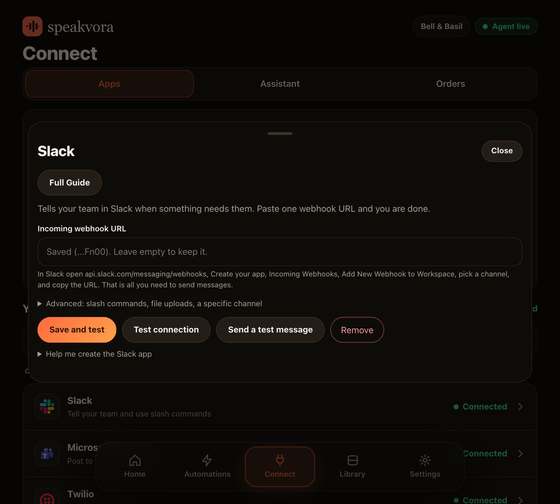
- In the agent open Connect, Slack, paste it under Incoming webhook URL, and press Save and test. Use Send a test message: it should appear in the channel.
More control: a bot token
- In the same Slack app open OAuth & Permissions. Under Bot Token Scopes add
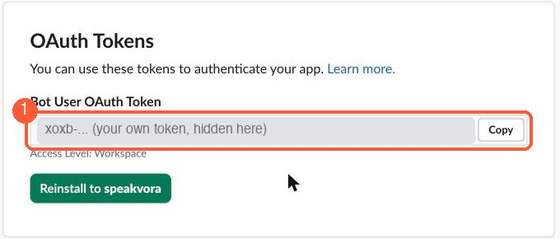
chat:write,files:writeandchannels:read(andgroups:readfor private channels). - Press Install to Workspace and copy the Bot User OAuth Token (starts with xoxb-).
- In Slack, open the channel and type
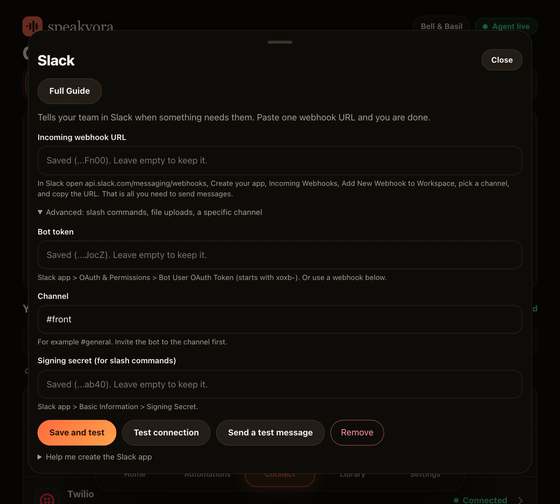
/invite @Speakvora agentso the bot can post there. - In the agent open Connect, Slack, Advanced, paste the token, type the channel (for example #front-desk), and press Save and test.
- Different channels per event (for example #bugs, #billing): in a workflow's "Tell my team" step type the channel name in its box.
Make channels for each kind of message (recommended)
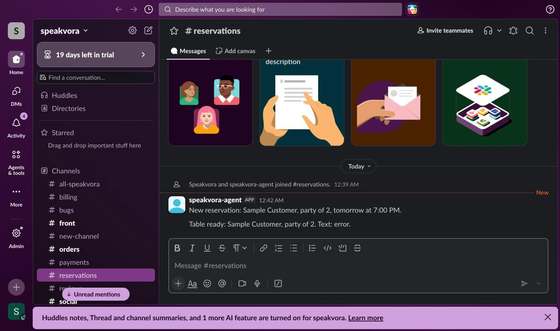
A separate channel for each kind of news keeps your team from missing things. We use #reservations, #orders, #urgent, #reviews and #payments in the example.
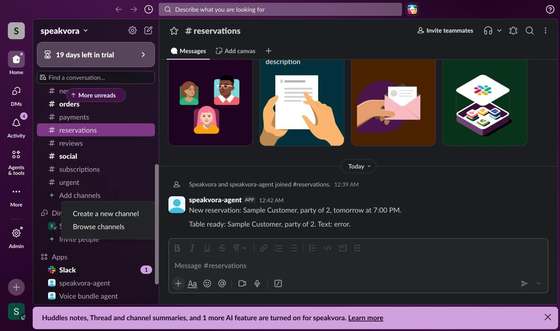
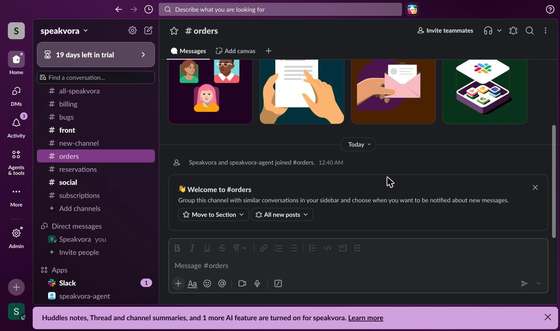
- In Slack, scroll to the end of your channel list and press Add channels, then Create a new channel.
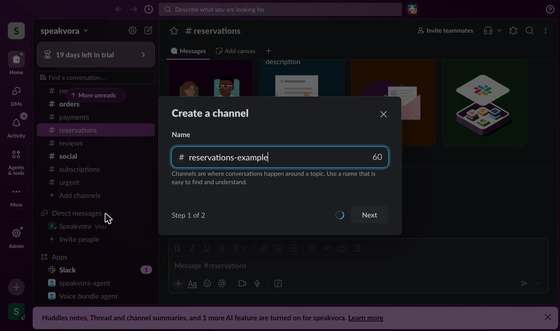
- Type the name (for example
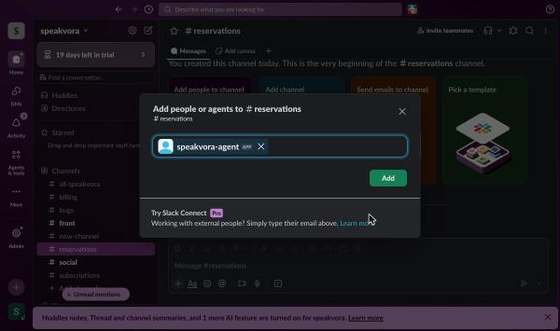
reservations), press Next, keep it Public, and press Create. - Slack asks who to add. Type the name of your agent's Slack app (for example
speakvora-agent), choose it, and press Add. The app must be in the channel or it cannot post there. - The channel now shows that the app joined. Repeat for each channel.
- Tell the agent which team goes where. In the agent folder's
agent.json, underslack, add for example"channels": {"#host": "#reservations", "#kitchen": "#orders", "#manager": "#urgent", "#billing": "#payments"}and restart the agent. Workflows that tell "#host" now post in #reservations. (Channels need the bot token, not only a webhook.) - Send a test event from the dashboard (Your agent, Agent preview, App event). The message appears in the right channel.
What the agent's Slack screen looks like
Open Advanced for the bot token, channel and signing secret.
Slash commands (optional)
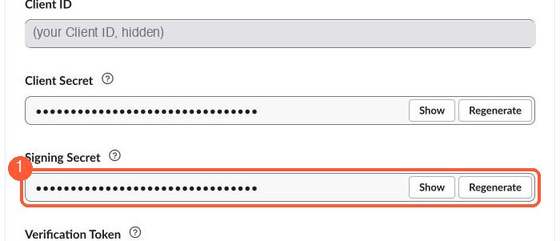
- In the Slack app open Basic Information and copy the Signing Secret into the agent's Slack section.
- Open Slash Commands, create
/agent, and set its address to your agent's public address plus/slack/command.
If something is wrong
- Message does not appear: invite the bot to the channel (bot token) or check the webhook was created for that channel.
- Test says token not accepted: copy the xoxb- token again after reinstalling the app.
All help guides · Every agent feature · AI receptionist by industry
Questions
What is this guide for?
The agent posts to a Slack channel when something needs a person (a refund request, a bug, a hand-off). Two ways: a simple webhook (text only, 5 minutes) or a bot token (channels you choose, files, slash commands).