Texts with Sent (an alternative to Twilio)
A step-by-step guide with pictures, from the Speakvora agent's own Connect tab.
Short answer: Sent (sent.dm) is a messaging service. You create your own Sent account and Sent bills you directly: Speakvora adds no per-message fee, does not pay for your messages and never covers a shortfall on your Sent account. Twilio keeps working exactly as before; you choose which one sends. Time: about 15 minutes, plus.
Every key, number and name in the pictures is a made-up example. Nothing here asks you to share a real key with anyone but the app on your own computer.
Sent (sent.dm) is a messaging service. You create your own Sent account and Sent bills you directly: Speakvora adds no per-message fee, does not pay for your messages and never covers a shortfall on your Sent account. Twilio keeps working exactly as before; you choose which one sends. Time: about 15 minutes, plus however long business texting takes to be approved (days for US business texting). The keys and screens below are made-up examples.
What works today: sending texts, receiving replies, delivery reports, STOP/START/HELP. What does not: phone calls through Sent. They are a separate test feature that Sent must switch on for your account, and the agent never reports calls as ready from a key alone.
Step 1. Get your own Sent account ready
- Sign up at app.sent.dm and complete business verification and billing.
- In Channels add a texting number or sender. In the US a business number needs carrier registration (10DLC), which can take days. Until Sent shows the sender as Active, texts cannot go out.
- Optional: ask Sent to turn on phone calls for your account (support@sent.dm). You can ignore this for texting.
Step 2. Create the API key and the webhook
- In the Sent dashboard open API keys and create a key for this agent. Copy it. Anyone with the key can send texts at your cost, so keep it private.
- Open Webhooks and create one. Use your agent's public address followed by /sent/webhook, for example
https://agent.example.com/sent/webhook. Tick the message and channel events. - Sent shows the signing secret (it starts with
whsec_) only once. Copy it now.
Step 3. Connect it to the agent
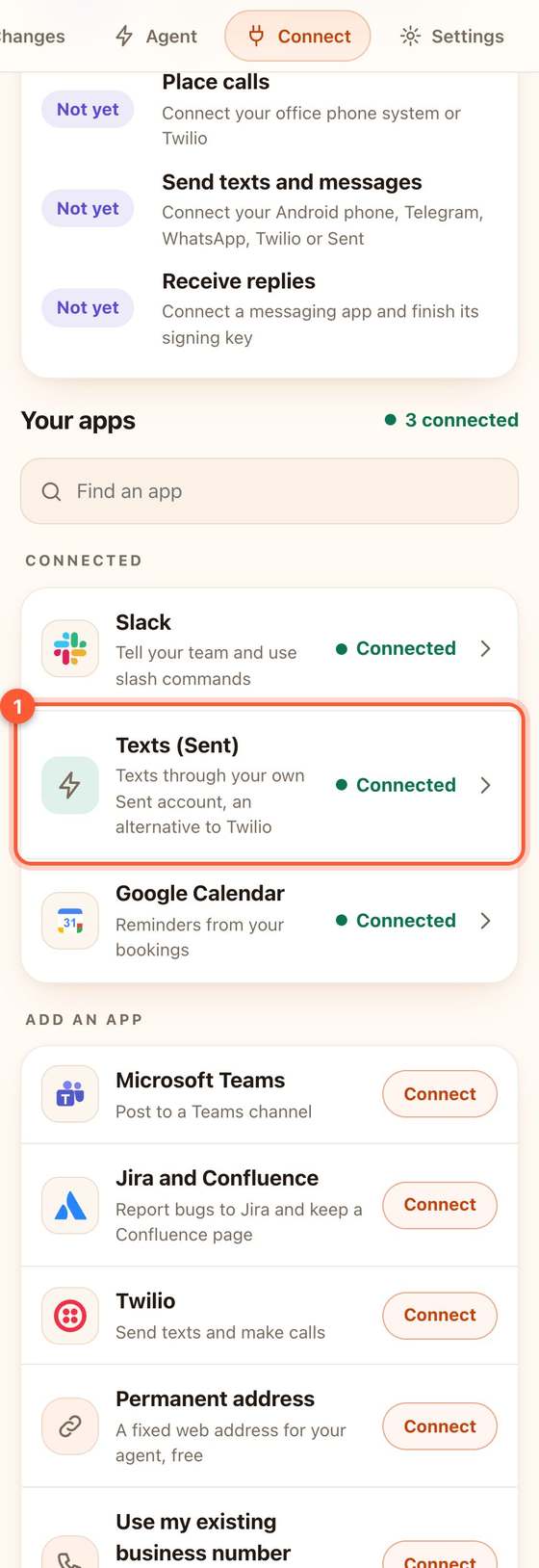
- In the agent open Connect, then Add an app, and choose Texts (Sent).
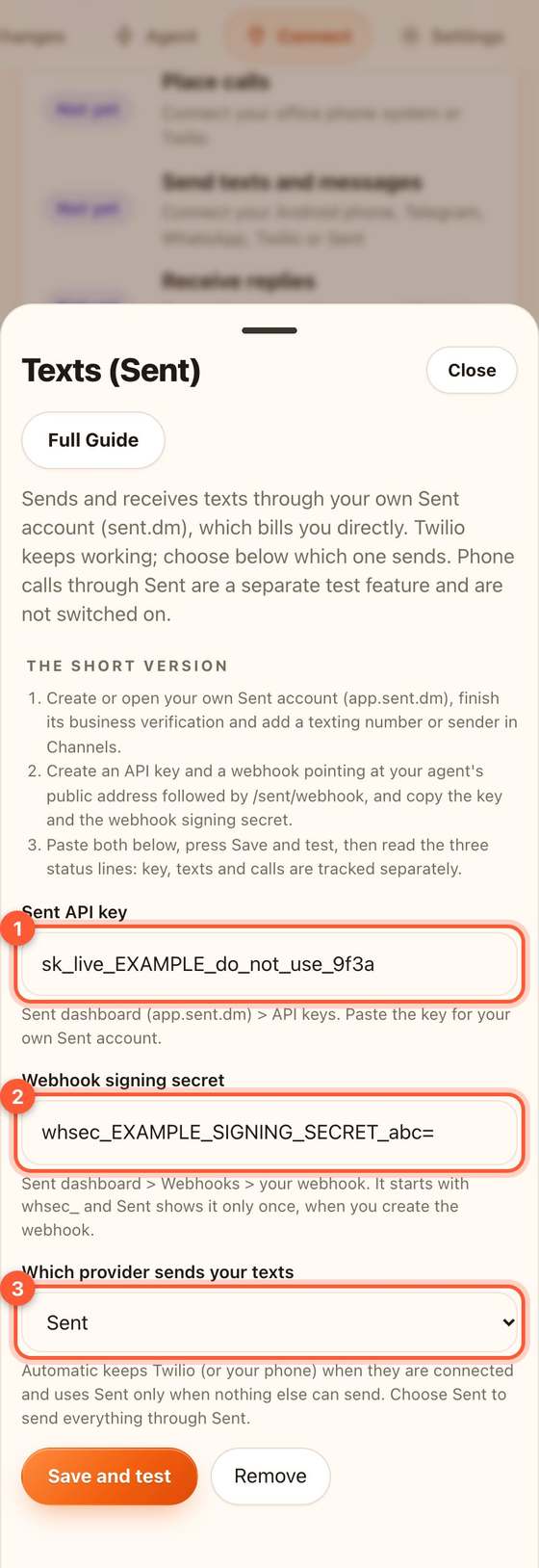
- Paste the Sent API key (1) and the Webhook signing secret (2). Under Which provider sends your texts (3) leave Automatic to keep Twilio (or your phone) as the sender, or choose Sent to send everything through Sent.
- Press Save and test. The test is a harmless dry run: nothing is sent or charged. Then read the three status lines (4). A working key is not the same as ready:
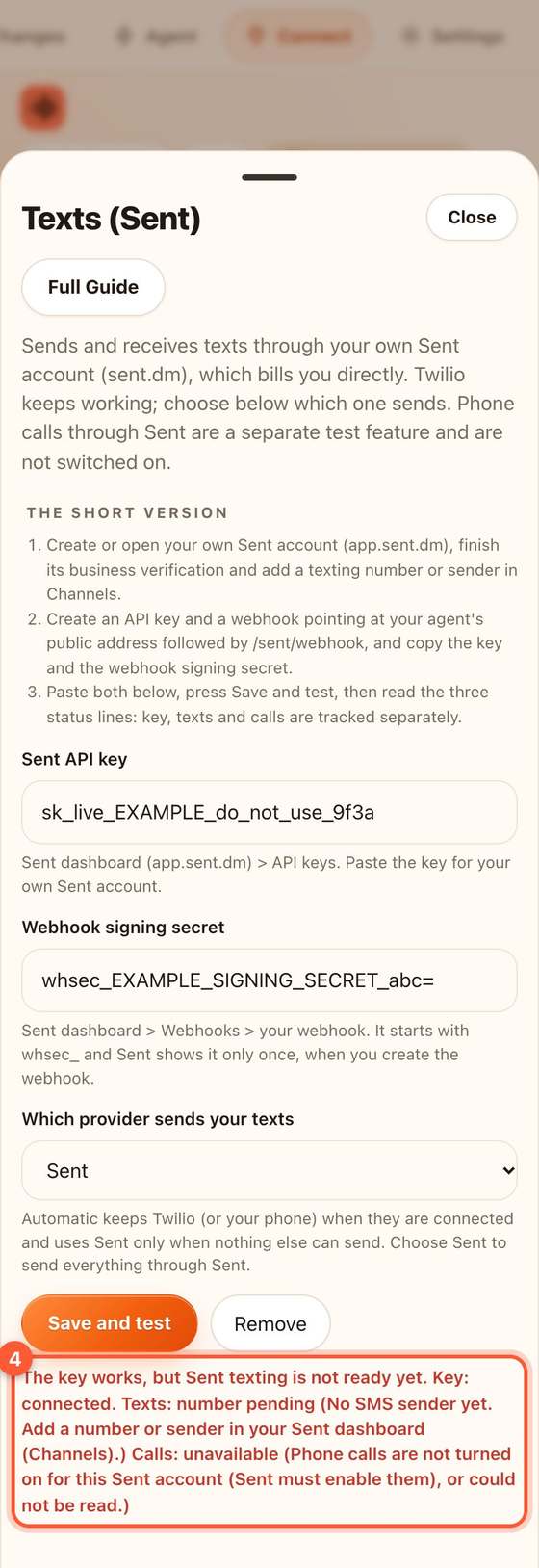
- Key connected, rejected or unchecked.
- Texts: not connected, key connected, number pending, verification pending, action needed, inactive, or ready.
- Calls: unavailable (Sent has not turned calls on), number pending, or "agent not verified". It is never shown as ready.
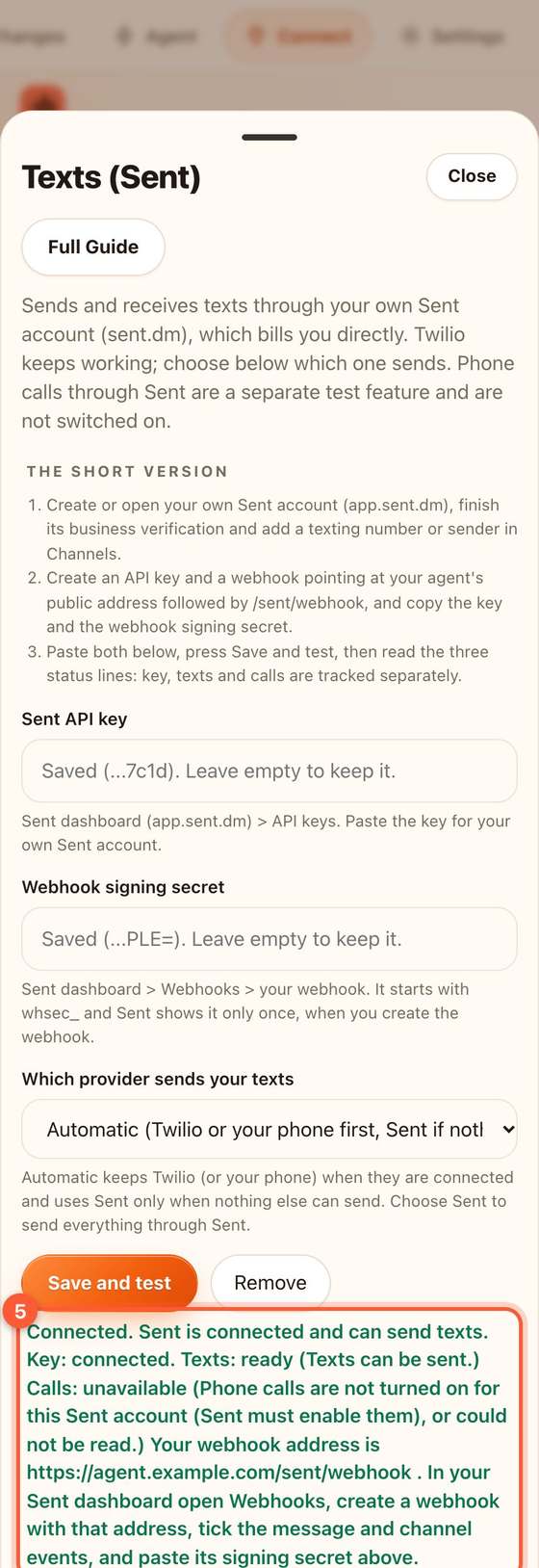
- When Texts says ready, the result also shows your webhook address (5). Make sure it is the address you gave Sent in Step 2.
Who pays
You pay Sent: a monthly platform fee per active contact and a per-message carrier cost, as listed on sent.dm/pricing when we checked (2026-11-21: $0.0150 per active contact per month, about $0.0047 per US SMS, no carrier fee for undelivered messages). Sent's page did not publish voice minute rates, number or 10DLC campaign fees, or WhatsApp and RCS rates, so ask Sent for them before you count on a total. Speakvora never pays your Sent bill.
Replies, consent and STOP
- A customer who texts you can always be answered. For someone who has never replied, Sent allows free-form texts only for 7 days after your last approved template. After that the text is accepted but ends Blocked, and the agent reports it as not delivered (it needs an approved template in Sent).
- Sent answers STOP, START and HELP with the templates you approved in Sent, and records consent. The agent mirrors it (a STOP stops all texts to that person) and sends no second reply. Approve those templates in Sent, or customers get no confirmation.
- Each send uses one explicit channel (SMS). It never sends the same text on several channels.
Using a number you already have
- A new number from Sent: the simplest.
- Moving (porting) your existing number to Sent: Sent's public documentation does not describe porting, so ask Sent support first. Do not port a live business number until they confirm in writing what happens to calls and texts.
- Forwarding calls from your current carrier to a number is a reversible way to try things. It does not move your texts, and your carrier may charge for forwarded minutes.
- WhatsApp is connected in Sent with your Meta account. Sent says a number can belong to one WhatsApp account at a time, including one used by the WhatsApp Business app, so check before moving it.
Nothing in the agent buys, ports or reroutes a number for you.
If something is wrong
- Key rejected: copy the key again from Sent, API keys.
- Texts: number pending / verification pending: Sent is still setting up or the carrier is still reviewing your registration. Nothing is wrong on this computer; wait, or look under Channels in Sent.
- Texts: action needed: Sent needs more information. The line says what.
- "webhook refused" in Activity: the signing secret is wrong, or this computer's clock is more than 5 minutes off.
- A text shows Blocked: nobody has an open conversation with that person; use an approved template in Sent.
- Still stuck? Connect, Download report, and email it to support. It never contains keys.
All help guides · Every agent feature · AI receptionist by industry
Questions
What if this happens: Key rejected?
copy the key again from Sent, API keys.
What if this happens: Texts: number pending / verification pending?
Sent is still setting up or the carrier is still reviewing your registration. Nothing is wrong on this computer; wait, or look under Channels in Sent.
What if this happens: Texts: action needed?
Sent needs more information. The line says what.
What if this happens: "webhook refused" in Activity?
the signing secret is wrong, or this computer's clock is more than 5 minutes off.
What if this happens: A text shows Blocked?
nobody has an open conversation with that person; use an approved template in Sent.