Connect Dutchie POS
A step-by-step guide with pictures, from the Speakvora agent's own Connect tab.
Short answer: This connects your own Dutchie account to your Speakvora agent. Then a customer can text where is order 1234 and get the answer in seconds, and the agent can send status and tracking texts. The agent only reads. It can never create, change or delete anything in Dutchie. Only the status word and the order number are.
Every key, number and name in the pictures is a made-up example. Nothing here asks you to share a real key with anyone but the app on your own computer.
This connects your own Dutchie account to your Speakvora agent. Then a customer can text *where is order 1234* and get the answer in seconds, and the agent can send status and tracking texts. The agent only reads. It can never create, change or delete anything in Dutchie. Only the status word and the order number are ever texted back, never names, prices, items or addresses.
TIP: You need about 15 minutes, a computer, and the sign-in for your Dutchie account (the owner or a manager). You can't break anything: if a step does not work, nothing has changed and you can just try again. The keys and screens below are made-up examples.
NOTE: This guide was written from Dutchie's public developer documentation (a few details could not be confirmed) and has not been tried yet on a live Dutchie account. If a screen looks different from what is described, press Connect, then Download report, and send it to support. We fix it for everyone.
Who this is for: dispensary. How Dutchie gives access: The vendor only gives API access after an approval or a business agreement. Ask them first (steps below); until then use the no-API options at the end. What it costs you: Cost not stated in the public docs; ask Dutchie Support.
Part 1. Get your key from Dutchie
Do this on your computer, in a new browser tab, signed in to Dutchie.
- Sign in to the Dutchie support portal as the store owner or manager.
- Open a new support request and say you want API access for the vendor Speakvora at your location.
- Tell them the use case: reading order status so customers can be told when an order is ready.
- Ask for read-only access limited to orders, transactions and deliveries; no write access.
- Dutchie Support sends a location API key; keep it private.
- Paste the key in Speakvora here; the check calls whoami and shows your location.
WARNING: If Dutchie asks which permissions to give, tick only the read-only ones: read-only access to orders and transactions for your location. Never give write or admin access.
TIP: To copy the key, click inside the box that shows it, press Command + C on a Mac or Ctrl + C on Windows (or right-click and choose Copy). Nothing will look different. It is now in your clipboard, ready to paste. Keep it private: anyone who has it can read your orders.
Part 2. Open the Connect tab in your agent
- Open your agent's dashboard (the page you open from the Start Speakvora Agent file).
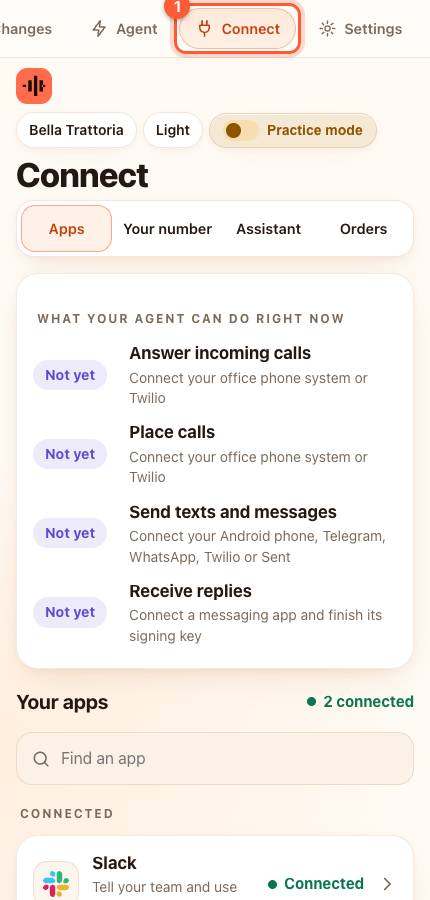
- Press Connect in the menu. On a phone the menu is the bar along the top; slide it sideways if you do not see Connect.
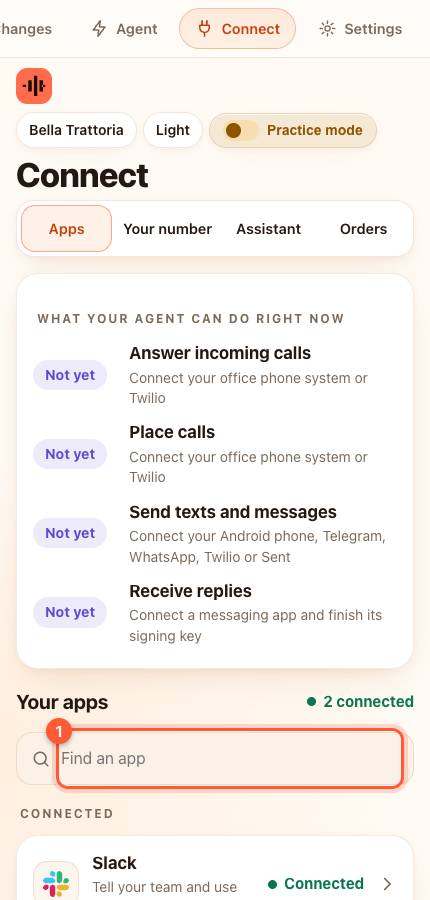
- Under Your apps type Dutchie in the box that says Find an app (1), or scroll down the list.
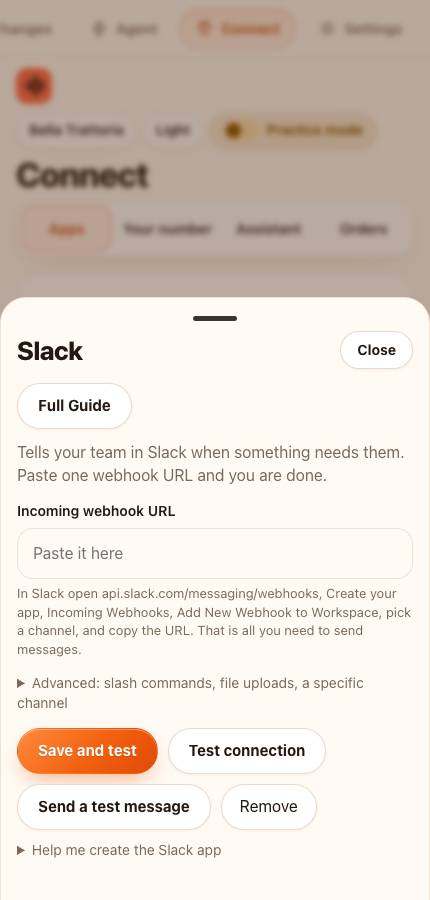
- Press Dutchie POS. A card slides up. (If you only see apps for your own kind of business, that is on purpose: your agent only shows the systems that make sense for it.)
Part 3. Paste it in
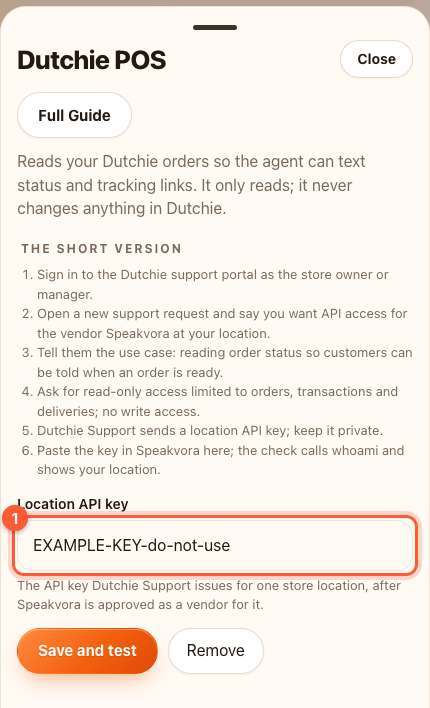
1 box to fill in. Click inside a box, press Command + V on a Mac or Ctrl + V on Windows, then move to the next:
- Location API key (secret: it stays on this computer and is never shown again, only the last few characters). The API key Dutchie Support issues for one store location, after Speakvora is approved as a vendor for it.
TIP: Pasted by mistake into the wrong box? Click the box, press Command + A (Ctrl + A on Windows) to select all, then paste again.
Part 4. Test it
- Press the orange Save and test button.
- Dutchie is asked for one harmless record, just to prove the key works. Nothing is changed in Dutchie.
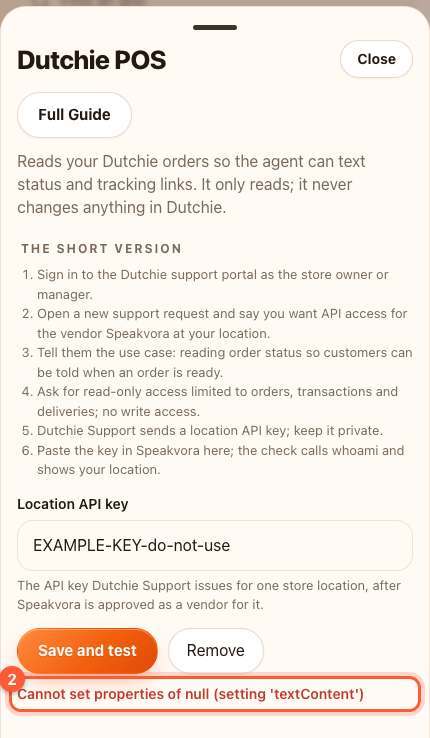
YOU SHOULD SEE: green words starting with Connected.
WARNING: Red words mean it did not work yet. Read them, then see If something is wrong below. Nothing bad happened.
What happens next
- A customer texts something like where is order 1234. The agent answers *Your order 1234 is preparing.* (the status word from Dutchie), or *I could not find that order. A team member will check and reply.*
- Each person can ask five times an hour. If Dutchie is down, the conversation carries on and the problem is written to Activity.
- Mode: the agent asks Dutchie when a customer asks.
If something is wrong
- It says the key was refused (401 or 403): copy the key again from Dutchie. Make sure there is no space before or after it, and that it is a live key for the right shop or location.
- It cannot find an order (404): the number is not in Dutchie, or Dutchie uses a longer number than the one on the receipt.
- It says too many requests (429): wait a minute and press Save and test again.
- Dutchie says you need a plan or approval: Dutchie issues API keys only through its Support portal, and each key is tied to one vendor relationship, so a key you create for yourself will not work for Speakvora until Speakvora is registered as the vendor. The auth page was read (base URL, Basic auth with the key as username and empty password, GET /whoami). The public docs read did not show an endpoint that reads one order by number, so no order lookup is configured yet.
- Still stuck? Press Connect, then Download report, and email it to support. It never contains keys or customer messages.
If your plan has no API
- Ask Dutchie Support to enable the integration for Speakvora, or use the order numbers you read out loud until it is approved.
Dutchie's own instructions: https://api.pos.dutchie.com/pages/overview.html
All help guides · Every agent feature · AI receptionist by industry
Questions
What if this happens: It says the key was refused (401 or 403)?
copy the key again from Dutchie. Make sure there is no space before or after it, and that it is a live key for the right shop or location.
What if this happens: It cannot find an order (404)?
the number is not in Dutchie, or Dutchie uses a longer number than the one on the receipt.
What if this happens: It says too many requests (429)?
wait a minute and press Save and test again.
What if this happens: Dutchie says you need a plan or approval?
Dutchie issues API keys only through its Support portal, and each key is tied to one vendor relationship, so a key you create for yourself will not work for Speakvora until Speakvora is registered as the vendor. The auth page was read (base URL, Basic auth with the key as username and empty password, GET /whoami). The public docs read did not show an endpoint that reads one order by number, so no order lookup is configured yet.
What if this happens: Still stuck??
Press Connect, then Download report, and email it to support. It never contains keys or customer messages.