A permanent address for your agent (no more ports)
A step-by-step guide with pictures, from the Speakvora agent's own Connect tab.
Short answer: By default your dashboard lives at an address like http://127.0.0.1:8787/dashboard, and Twilio, WhatsApp and Telegram cannot reach your agent at all until it has a public web address. A permanent address fixes both: it gives your agent a fixed name such as hooks.yourbusiness.com that never changes, even when you.
Every key, number and name in the pictures is a made-up example. Nothing here asks you to share a real key with anyone but the app on your own computer.
By default your dashboard lives at an address like http://127.0.0.1:8787/dashboard, and Twilio, WhatsApp and Telegram cannot reach your agent at all until it has a public web address. A permanent address fixes both: it gives your agent a fixed name such as hooks.yourbusiness.com that never changes, even when you restart your computer.
Time: about 5 minutes with Tailscale, about 20 with Cloudflare. Cost: free. Three ways:
- Tailscale Funnel (recommended): free, no domain and no DNS changes, gives a fixed
name.ts.netaddress. - Cloudflare Tunnel: free, for people whose domain is already on Cloudflare; uses your own domain and can also put your dashboard on the internet behind an email login.
- My own server: for people who already run a web server and can point a name at this computer.
What you get
- A webhook address (for example
hooks.yourbusiness.com). Twilio, WhatsApp, Telegram, Slack and your own app send messages to it. The dashboard is never available on this address. - Optionally, a dashboard address (for example
agent.yourbusiness.com). It sits behind Cloudflare Access, which asks for your email and a one-time code before anyone sees anything, and the dashboard still needs your access token. - The agent runs the tunnel for you. You never open a terminal after setup.
Option 2: Cloudflare Tunnel (if your domain is already on Cloudflare)
Before you start
- A domain name you own (for example from Namecheap, GoDaddy or Cloudflare itself, about $10 a year). No domain? Use Tailscale below.
- This agent running on a computer that stays on. If the computer sleeps, the address is offline until it wakes.
Step 1. Put your domain on Cloudflare (skip if it is already there)
- Make a free account at dash.cloudflare.com/sign-up.
- Press Add a domain, type your domain, choose the Free plan.
- Cloudflare shows two nameservers. At the place you bought your domain, open its DNS or nameserver settings and replace the existing nameservers with those two. Save.
- Back in Cloudflare the domain shows Active after a few minutes (sometimes a few hours). You can continue with the next steps while it finishes.
Step 2. Open Zero Trust
- In the Cloudflare dashboard press Zero Trust (or Networks) in the left menu.
- The first time it asks you to pick a team name (anything, for example your business name) and the Free plan. It may ask for a card to confirm; the free plan costs nothing.
Step 3. Create the tunnel
- Open Networks, then Tunnels, then Create a tunnel. Choose Cloudflared.
- Name it "speakvora-agent" and press Save tunnel.
- Cloudflare now shows an install command for your computer. You do not need to run it: the agent runs the helper for you. Find the long text after
--token(it starts witheyJ) and copy it. You can also copy the whole command; the agent finds the token inside it.
Step 4. Name your addresses
- Press Next to reach Public hostnames (or open the tunnel and choose Public Hostname, then Add a public hostname).
- Webhook address: Subdomain
hooks, Domain your domain, Service type HTTP, URLlocalhost:8787(use the port number the agent card shows if yours is different). Save. - Dashboard address (optional): add a second public hostname the same way with Subdomain
agentand the same service.
Cloudflare creates the DNS records for you.
Step 5. Protect the dashboard address (only if you added agent)
- In Zero Trust open Access, then Applications, then Add an application, choose Self-hosted.
- Name it "Speakvora dashboard", enter
agent.yourbusiness.comas the application domain. - Add a policy: Action Allow, Include Emails, and type your own email address (add your staff if you want). Save.
Never put Access in front of the hooks address: Twilio cannot log in.
Step 6. Tell the agent
- In the agent open Connect, Permanent address and choose Cloudflare.
- If it says the helper is not installed, press Install for me. It downloads Cloudflare's official helper and checks its checksum before keeping it. Or run the command it shows.
- Paste the token. Type the webhook address (
hooks.yourbusiness.com). If you added a dashboard address, type it and switch on Open the dashboard on the internet too. - Press Save and check. The checklist turns green line by line: helper installed, token saved, tunnel connected, webhook address reaches your agent.
- Press Use this address everywhere. Twilio, Telegram and WhatsApp now use it, and the rest of the dashboard shows it.
Using it every day
- Open
https://agent.yourbusiness.com/dashboard#token=...(the same access token your local dashboard uses) and save it as a bookmark. Cloudflare asks for your email and a code, then the dashboard opens. - The local address
http://127.0.0.1:8787/dashboardkeeps working on the computer.
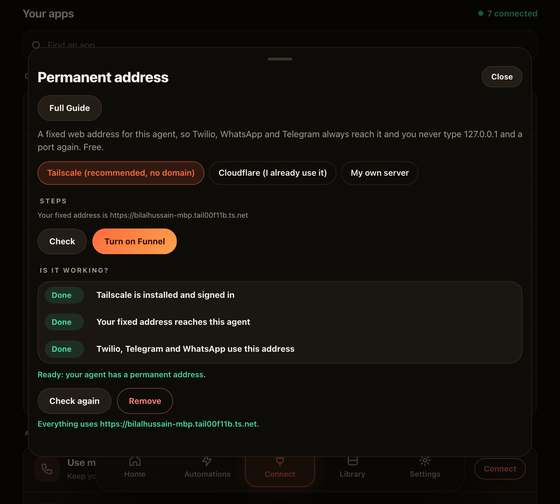
Option 1: Tailscale Funnel (recommended, no domain)
- Install Tailscale on the computer that runs the agent (tailscale.com/download) and sign in. It is free for personal and small use.
- In the agent open Connect, Permanent address, choose Tailscale and press Check. It shows your fixed name, something like
agent-mac.tail1234.ts.net. - Press Turn on Funnel. If Tailscale says Funnel is not enabled, open its admin page (login.tailscale.com), turn on HTTPS certificates and Funnel, then press Turn on Funnel again.
- When the checklist is green press Use this address everywhere.
The public address only receives messages; the dashboard is never shown on it.
Open your dashboard on your own phone or laptop (private)
- Install Tailscale on that phone or laptop and sign in with the same Tailscale account.
- In the agent, on the same screen, press Open my dashboard on my devices. The agent shows
https://your-name.ts.net:8443/dashboard. - Press Copy link with my token, send it to your own device once, and open it there. Bookmark it.
Only devices signed in to your Tailscale can reach that address; nobody else on the internet can. It still needs your access token, and eight wrong tokens in ten minutes lock the sender out. The agent must still be running on your computer, so keep the computer on.
Turn it off any time with Turn off on the same screen.
Option 3: My own server
If you already run a web server, point a name at this computer and forward it to http://127.0.0.1:8787. With Caddy that is two lines: hooks.yourbusiness.com { reverse_proxy 127.0.0.1:8787 }. In the agent choose My own server, type the name and press Check. The server must pass the real request through and use https.
If something goes wrong
- "…is not found on the internet yet": the name does not exist in DNS. In Cloudflare, make sure the public hostname was added to this tunnel; wait a minute. If your domain is not Active yet, wait for that first.
- "The tunnel is not connected": the helper is not running or the token is wrong. Check the line "The tunnel is connected to Cloudflare". If it shows an error about the token, copy the token again.
- Error 502 or 1033 in a browser: the tunnel is up but cannot reach the agent. The service must be
http://localhost:8787(the port on the card) and the agent must be running. - "…answers with a login page": Cloudflare Access is in front of the webhook address. Remove Access from
hooksand use a separate dashboard address. - "…reaches a DIFFERENT Speakvora agent": another computer is connected to the same tunnel. Use a different tunnel for each agent.
- The dashboard says "only opens on the computer running the agent": that is the safety rule for the webhook address. Open the dashboard address you set up (it needs Cloudflare Access plus your token), or use the local address.
- It stopped after the computer slept: wake the computer; the agent restarts the helper by itself within a minute. For phone calls and texts you can still set the Twilio backup (Connect, Texts and calls) so a person's phone rings while the computer is off.
Good to know
- The tunnel token is saved on your computer only (in the agent's secrets file), never in your settings file, and the helper receives it through its environment, not its command line.
- Free means free: Cloudflare Tunnel, Cloudflare Access (up to 50 people) and Tailscale's personal plan cost nothing. Your domain costs about $10 a year.
- You can remove it any time with Remove on the card. The agent goes back to a local-only address.
All help guides · Every agent feature · AI receptionist by industry
Questions
What is this guide for?
By default your dashboard lives at an address like `http://127.0.0.1:8787/dashboard`, and Twilio, WhatsApp and Telegram cannot reach your agent at all until it has a public web address. A permanent address fixes both: it gives your agent a fixed name such as `hooks.yourbusiness.com` that never changes, even when you restart your computer.