Connect PagerDuty
A step-by-step guide with pictures, from the Speakvora agent's own Connect tab.
Short answer: GOAL: your agent hears when an incident is triggered or resolved. TIME: about 10 minutes. COST: free. YOU NEED: your agent running with a public address (Connect, Permanent address) and sign-in to PagerDuty as the owner or an admin.
Every key, number and name in the pictures is a made-up example. Nothing here asks you to share a real key with anyone but the app on your own computer.
GOAL: your agent hears when an incident is triggered or resolved. TIME: about 10 minutes. COST: free. YOU NEED: your agent running with a public address (Connect, Permanent address) and sign-in to PagerDuty as the owner or an admin.
TIP: You can't break anything. A webhook is only a message PagerDuty sends. You can delete it and start again.
Part 1. Open the Connect tab in your agent
- Open your agent's dashboard (the page you open from the Start Speakvora Agent file).
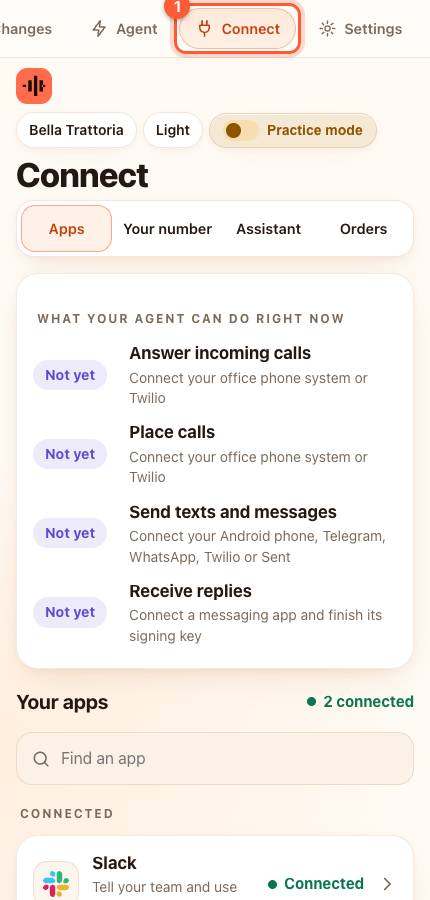
- Press Connect in the menu. On a phone the menu is the bar along the top; slide it sideways if you do not see Connect.
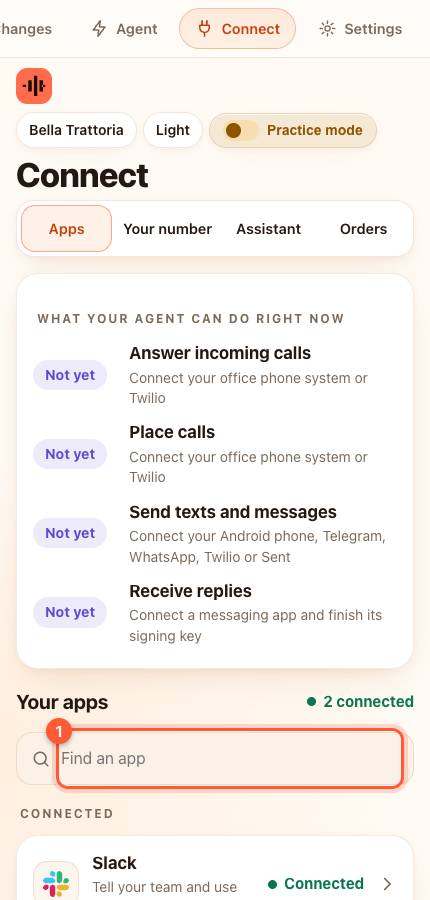
- Under Your apps type pagerduty in the box that says Find an app (1), or scroll down the list, and press it. A card slides up.
- The card shows an address (it ends in /event) and a secret. Press Copy next to each. Keep the page open.
Part 2. Add it in PagerDuty
- In PagerDuty open [[Integrations > Generic Webhooks (v3)]] then New Webhook.
- Webhook URL: paste the agent's address.
- Scope: choose Account (or one service) and tick incident.triggered and incident.resolved.
- Press Add Webhook. PagerDuty shows a signing secret ONCE: copy it right away.
- Paste that secret into the agent card's Signing secret from PagerDuty box.
WARNING: The secret is private. It proves to your agent that a message really came from PagerDuty.
Part 3. Test it
- Press Save and test on the card (paste the secret first if the card asks you to).
YOU SHOULD SEE: green words saying Connected. Trigger a test incident in PagerDuty and it shows in Activity.
If something is wrong
- You lost the secret: open the webhook in PagerDuty and rotate the secret, then paste the new one.
All help guides · Every agent feature · AI receptionist by industry
Questions
What if this happens: You lost the secret?
open the webhook in PagerDuty and rotate the secret, then paste the new one.