Answer calls on your office phone system
A step-by-step guide with pictures, from the Speakvora agent's own Connect tab.
Short answer: The agent signs in to your phone system as an extension, answers the calls you send to it, plays your recorded menu, and transfers to your staff. No Twilio. Time: up to an hour, most of it in your phone system's admin page.
Every key, number and name in the pictures is a made-up example. Nothing here asks you to share a real key with anyone but the app on your own computer.
The agent signs in to your phone system as an extension, answers the calls you send to it, plays your recorded menu, and transfers to your staff. No Twilio. Time: up to an hour, most of it in your phone system's admin page.
The guided setup
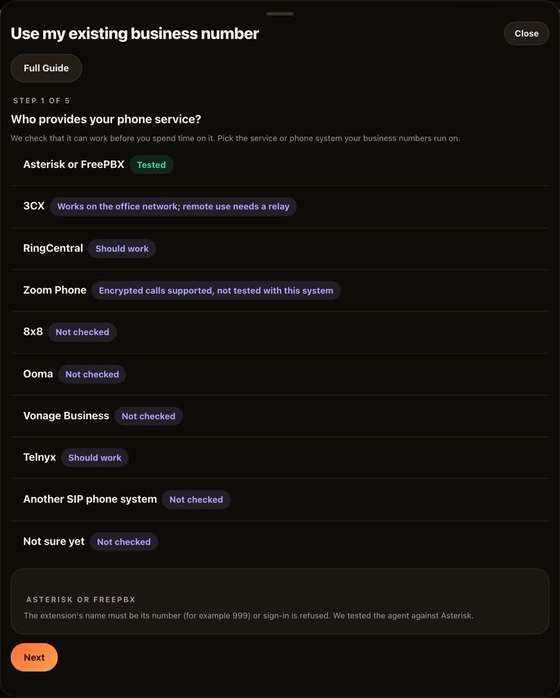
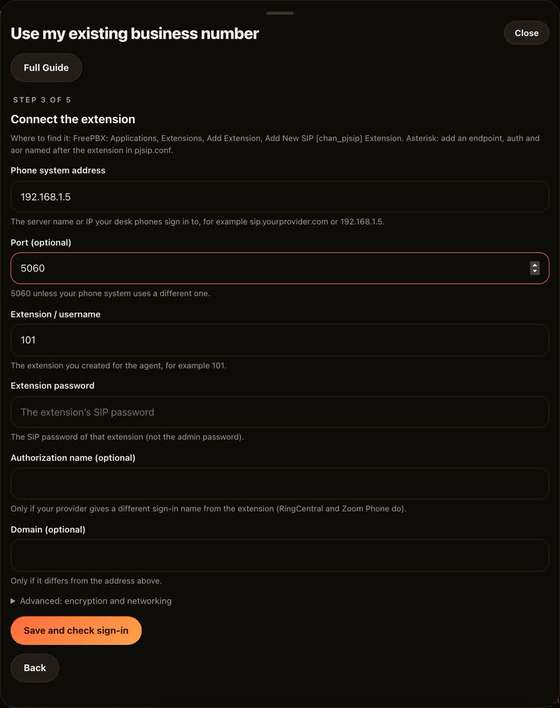
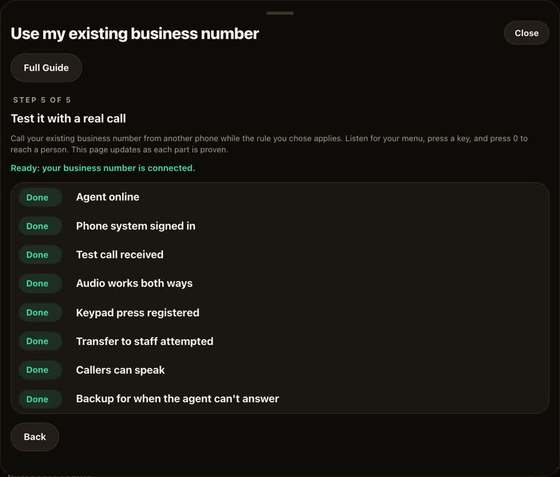
The card walks you through five steps: check your phone system, choose who sets it up (you, or copy a ready-made message for your phone admin), connect the extension, choose when the agent answers, and test with a real call. The last screen shows each part as it is proven: signed in, test call received, audio both ways, a key press, a transfer and a backup. It says Ready only after a real call has worked. If something is wrong it says so in plain words, with technical details for your phone admin.
Before you start
- Admin access to your phone system, or the person who has it.
- This agent running on a computer that stays on, on the same network as the phone system (for an on-site system) or with internet (for a cloud one).
- ffmpeg installed on that computer so your recordings can be converted for the phone line.
- Your customer service staff phone filled in under Settings, Your business details (the transfer target).
Step 1. Create an extension for the agent
Make a normal SIP extension, as if adding a desk phone. Write down: the server address, the extension number, and its SIP password.
- 3CX: Extensions, Add, enter a number, then open the Phone provisioning section; the SIP ID and password are there.
- FreePBX / Asterisk: Applications, Extensions, Add SIP (chan_pjsip) extension; the secret is the password.
- RingCentral: Phones & Devices, Add Phone, "Other phones"; it shows SIP domain, username, authorization name and password. Put the authorization name in the agent's "Authorization name" box.
- Zoom Phone: Phone System Management, Users & Rooms, the user's Desk phone or "Provision a SIP device"; it shows the same four details.
- 8x8, Ooma, Vonage, Telnyx: look for "SIP device", "third-party phone" or "SIP credentials".
- Analog lines (an old landline): plug the line into a SIP adapter (about $30, for example a Grandstream HT801), enter the agent computer as its destination, and follow the adapter's guide.
Menu names change; if you cannot find it, ask your provider for "SIP credentials for a third-party phone".
Step 2. Connect it to the agent
- Open Connect, Your office phone system (calls).
- Fill in the address, extension, password (and authorization name or domain if your provider gave them).
- Optional: a fallback number, so if something fails a caller reaches a person.
- Press Save and test. It should say it signed in. If it says the password was refused, re-copy it; this is the extension's SIP password, not an admin login.
Step 3. Send calls to the agent
In your phone system add a rule sending calls to the new extension. Safest first: an after-hours rule, or an overflow rule when nobody answers in 20 seconds. Later you can route a whole queue or one number to it.
Step 4. Try it
- Call your number while the rule applies.
- You should hear your menu. Press 1 to hear your hours.
- Press 0 to be transferred to your staff phone.
- In the agent, Calls and texts shows the call.
If callers hear nothing
That is the audio being blocked.
- On the agent's computer allow incoming UDP on ports 40000 to 40200.
- For a cloud phone system with the agent behind a home or office router: set "This computer's public IP" in the card, and forward those UDP ports on the router to the agent's computer.
- Some providers need the agent to have a public address; ask them about "SIP over UDP behind NAT".
Notes from a real test
We tested the connection against Asterisk, the open-source phone system behind FreePBX. It signed in with the extension password, rang the agent, played the menu, took a key press and transferred to a staff number.
- In Asterisk and FreePBX the extension's name must be its number (for example 101), or the sign-in is refused.
- If your phone system sends key presses as SIP INFO messages instead of the normal in-call tones, the agent understands both.
Make the menu your own
The menu callers hear on this connection is the same one you edit in the Your agent tab: change the keys, add "3 for billing" with its extension, and test it by pretending to call. See the Automations guide (the Full Guide button at the top of that tab).
Callers can speak
With a Speakvora key saved (Connect, Speakvora agent), callers can say what they need instead of pressing keys: "what are your hours", "I want to book", "let me talk to a person". The agent listens until the caller pauses, sends only that short piece of audio to Speakvora to turn it into text (about $0.0015 a minute, not stored), and then answers exactly as it does for a key press. The keypad always works, and asking for a person always transfers. Turn it off with Let callers speak under Advanced in step 3. English only for now. We tested the listening and the hand-off to the menu with a recorded stand-in for the speech service; the live transcription is checked when you place a first test call.
Encrypted calls (TLS and SRTP)
Some hosted phone systems, such as Zoom Phone, only accept encrypted devices. Under Advanced in step 3 set Encrypted connection to Encrypted (TLS) and Encrypted audio to Use it when offered or Require it. The agent checks the phone system's certificate: if it uses its own certificate, put the path of the certificate file your phone admin gives you in Certificate file. Zoom's usual encrypted port is 5091; most others use 5061. We tested the encrypted connection against a real Asterisk (sign-in and a call over TLS) and the encrypted audio against an independent SRTP implementation (ffmpeg's libsrtp) and the standard's test vectors. We have not tested Zoom Phone itself, so treat the first connection as a pilot.
What it cannot do yet
- Place outbound calls from the agent over this line.
- Understand speech: callers use the keypad.
Keep it safe
- If the agent's computer is off, calls simply never reach the extension; your phone system's normal rules should ring a person.
- Use one extension for the agent only; do not reuse a person's.
All help guides · Every agent feature · AI receptionist by industry
Questions
What is this guide for?
The agent signs in to your phone system as an extension, answers the calls you send to it, plays your recorded menu, and transfers to your staff. No Twilio. Time: up to an hour, most of it in your phone system's admin page.