Answer texts on your iPhone (experimental)
A step-by-step guide with pictures, from the Speakvora agent's own Connect tab.
Short answer: GOAL: customers text your own iPhone number and the agent answers, without Twilio. TIME: about 20 minutes. COST: free. YOU NEED: an iPhone that stays on, the Apple Shortcuts app (already on your phone), and your agent's public address (see Permanent address).
Every key, number and name in the pictures is a made-up example. Nothing here asks you to share a real key with anyone but the app on your own computer.
GOAL: customers text your own iPhone number and the agent answers, without Twilio. TIME: about 20 minutes. COST: free. YOU NEED: an iPhone that stays on, the Apple Shortcuts app (already on your phone), and your agent's public address (see Permanent address).
WARNING: Apple gives apps no way to read texts, so this uses a Shortcuts automation. It is experimental: the phone must be on, and on some iPhone versions sending the reply needs the phone unlocked. Test it before you rely on it.
Part 1. Open the Connect tab in your agent
- Open your agent's dashboard (the page you open from the Start Speakvora Agent file).
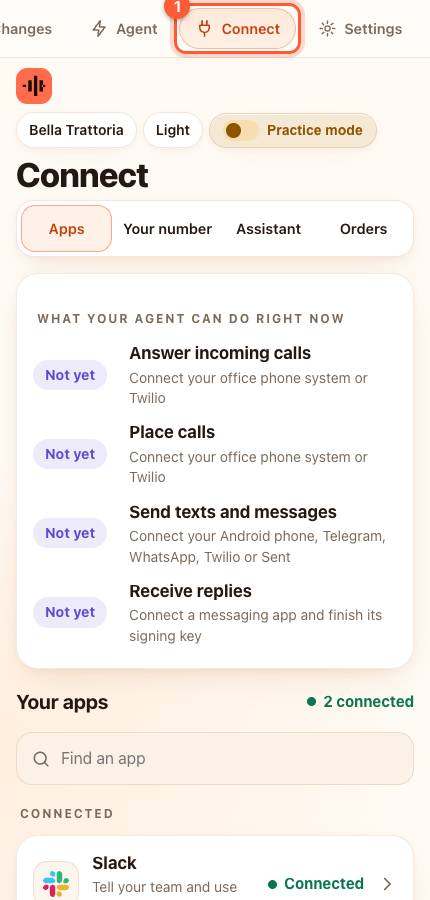
- Press Connect in the menu. On a phone the menu is the bar along the top; slide it sideways if you do not see Connect.
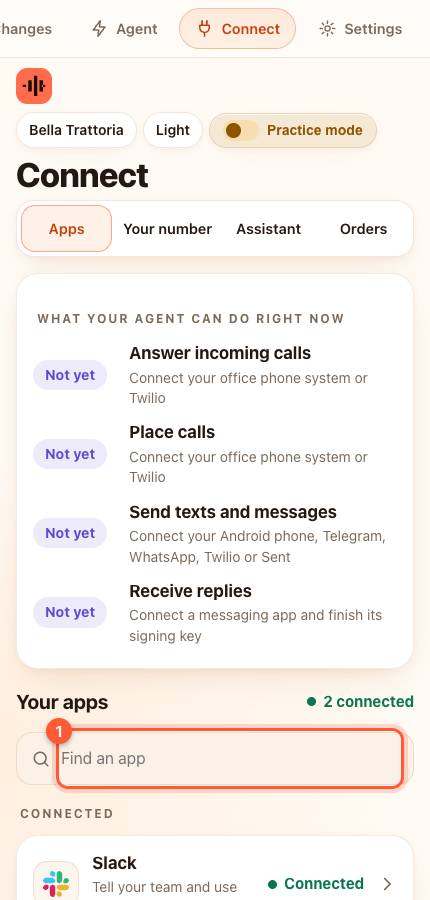
- Under Your apps type iPhone in the box that says Find an app (1), or scroll down the list, and press it. A card slides up.
Part 2. Make up a shared secret
- Make up a long random phrase of at least 16 characters, for example purple-kettle-moon-4821-tango. Write it down: you need it twice.
- Click inside Shared secret on the card and type or paste it. Press Save and test.
Part 3. Build the Shortcut on the iPhone
- On the iPhone open Shortcuts, then Automation, then New Automation, then Message.
- Choose who it listens to (Any sender if you want every text answered) and tick Run Immediately.
- Press Next, then Create New Shortcut. Add the action Get Contents of URL.
- Set the URL to your agent's public address followed by /iphone/sms. Set Method to POST, Request Body to JSON, and add two fields: from (the Sender from the Message) and text (the Message content). Under Headers add X-Iphone-Secret with your secret.
- Add the action Get Dictionary Value for the key reply. Then add If reply has any value, and inside it Send Message with the reply, to the same sender.
- Press Done.
Part 4. Test it
- From another phone, text your iPhone number: *what are your hours*.
YOU SHOULD SEE: within a few seconds your iPhone sends the agent's answer back to that number, and the conversation shows in Activity.
If something is wrong
- No answer: the iPhone was asleep or locked, or the Shortcut is not set to Run Immediately. Open the Shortcut and check.
- Activity says refused: the secret in the Shortcut header differs from the one on the card. Paste it again.
All help guides · Every agent feature · AI receptionist by industry
Questions
What if this happens: No answer?
the iPhone was asleep or locked, or the Shortcut is not set to Run Immediately. Open the Shortcut and check.
What if this happens: Activity says refused?
the secret in the Shortcut header differs from the one on the card. Paste it again.