Connect your calendar (Google Calendar or Outlook)
A step-by-step guide with pictures, from the Speakvora agent's own Connect tab.
Short answer: This lets your agent read your calendar so it can send appointment reminders and know who is booked. It only reads. It cannot add, move or delete anything with the simple link below. You can do either Google Calendar or Outlook, whichever you use. The pictures show example accounts.
Every key, number and name in the pictures is a made-up example. Nothing here asks you to share a real key with anyone but the app on your own computer.
This lets your agent read your calendar so it can send appointment reminders and know who is booked. It only reads. It cannot add, move or delete anything with the simple link below. You can do either Google Calendar or Outlook, whichever you use. The pictures show example accounts.
TIP: You need about 10 minutes, a computer, and the sign-in for your calendar. You can't break anything: reading a calendar changes nothing, and if a step goes wrong you just try again.
WARNING: The link you are about to copy is private, like a password. Anyone who has it can read your calendar. Only paste it into your own agent. If it ever leaks, reset it (the last section says how).
Part 1A. If you use Google Calendar
- Open [[calendar.google.com]] on a computer and sign in.
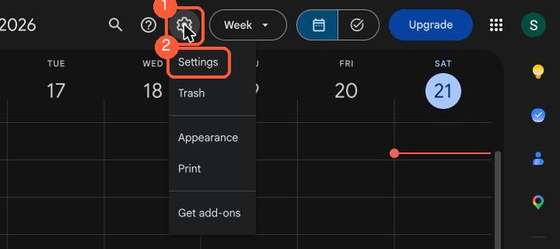
- Press the gear in the top right, then Settings.
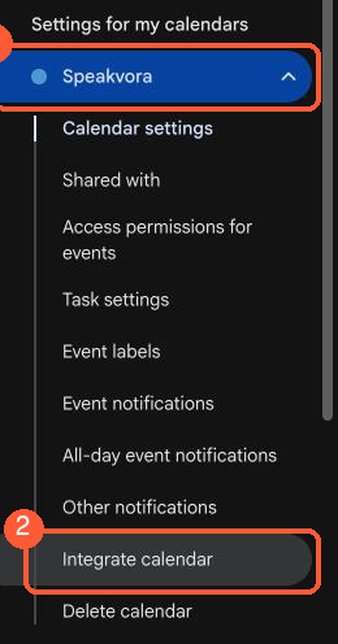
- In the menu on the left, scroll down to Settings for my calendars. Click the name of the calendar you want to use (1). Then click Integrate calendar (2).
- Scroll down the page until you see Secret address in iCal format (1). It shows only dots, which is normal: it is hidden for your safety.
- Press the copy icon at the right of that box (2). Nothing will look different, but the link is now copied.
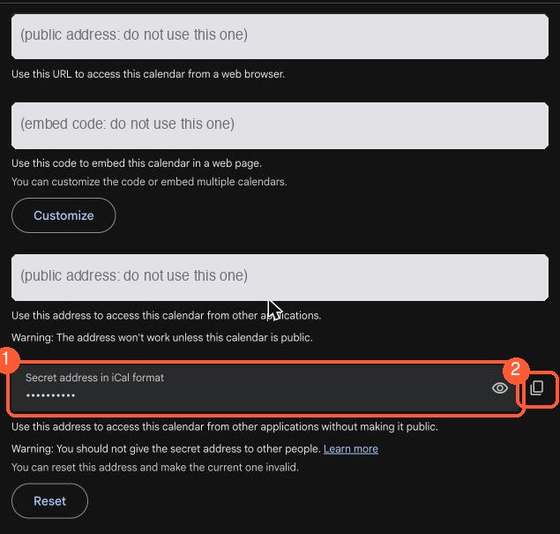
TIP: Copy only the box named Secret address in iCal format. The boxes above it (Public URL, Embed code, Public address) are different and will not work.
Part 1B. If you use Outlook (Outlook on the web or Microsoft 365)
- Open [[outlook.office.com]] (or outlook.com) and sign in, then press the Calendar icon on the left.
- Press the gear (Settings) at the top right. If you do not see it, open the ... menu.
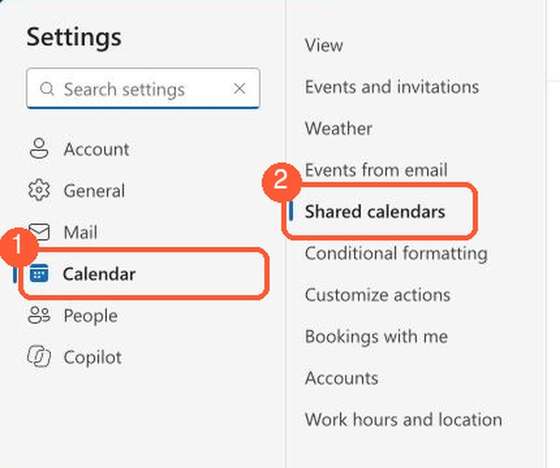
- In Settings, press Calendar (1), then Shared calendars (2).
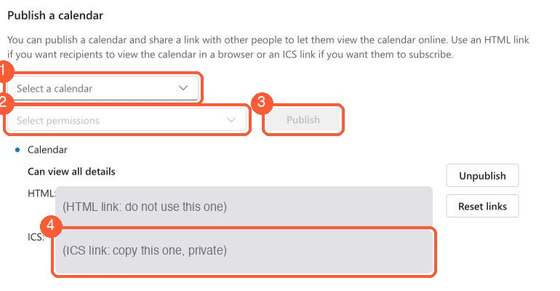
- Scroll down to Publish a calendar. Choose your calendar in the first box (1) and Can view all details in the second box (2), then press Publish (3).
- A link ending in .ics appears (4). Click it, then copy it (Command + C on a Mac, Ctrl + C on Windows). Do not use the one ending in .html.
TIP: To copy a link: right-click it and choose Copy link address, or click inside the box and press Command + C (Ctrl + C on Windows).
Part 2. Open the Connect tab in your agent
- Open your agent's dashboard (the page you open from the Start Speakvora Agent file).
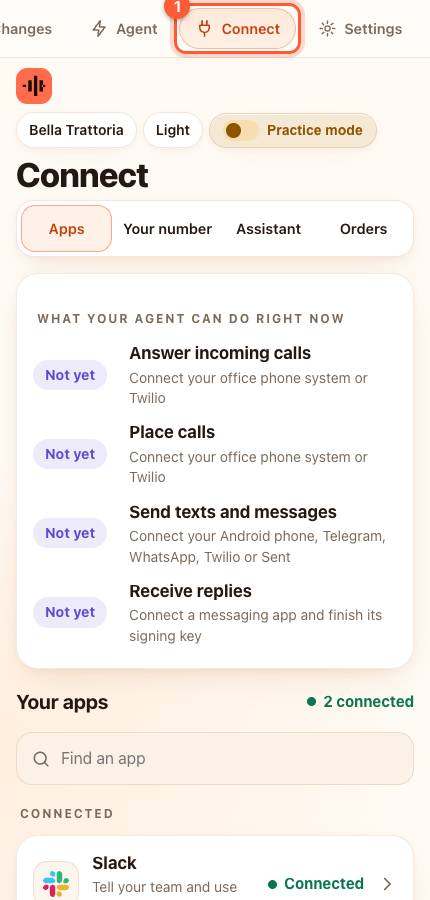
- Press Connect in the menu. On a phone the menu is the bar along the top; slide it sideways if you do not see Connect.
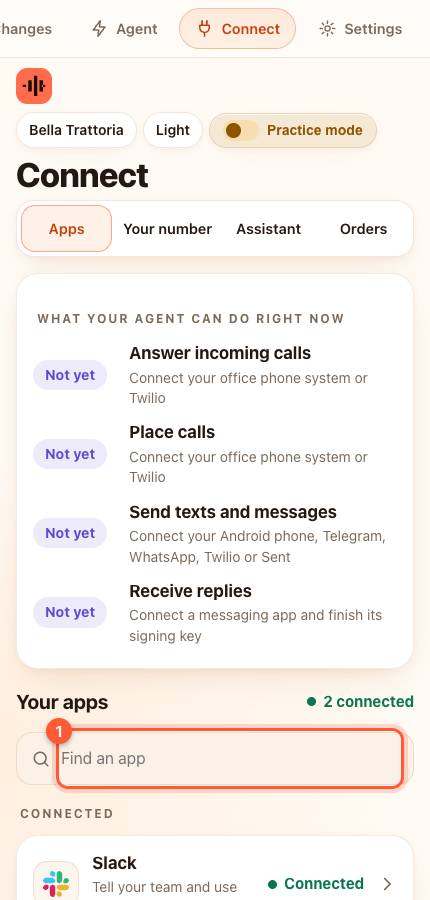
- Under Your apps type calendar in the box that says Find an app (1), or scroll down the list.
- Press Google or Outlook calendar. A card slides up.
Part 3. Paste it in
- Click inside the box Private calendar link (iCal / ICS).
- Press Command + V on a Mac or Ctrl + V on Windows to paste. You will see only dots (it is private).
- Leave the other boxes empty. They are only for the advanced option at the bottom.
- Press the orange Save and test.
YOU SHOULD SEE: green words saying Connected, and how many events it found in the next seven days. An empty calendar is fine: it says 0 events.
WARNING: Red words mean it did not work yet. The most common reason is that the wrong box was copied (for Google, the Public address instead of the Secret address; for Outlook, the .html link instead of .ics). Go back to Part 1 and copy the right one.
Booking format (so reminders know who to text)
Put the customer's phone number in the event description, for example Phone: 646-555-0120 SMS OK: yes, so reminders know who to text and that they agreed to texts.
Keep the link private
Anyone with the link can read your calendar. If it leaks, reset it in your calendar's settings.
To change bookings from the agent (Google, about 10 minutes)
Create a Desktop app OAuth client in your own Google Cloud project (free), then run python3 tools/connect_google_calendar.py --agent-dir . --email you@gmail.com in the agent folder. Google's consent page opens; the answer is caught on your own computer and saved in agent-state/secrets.json. The steps are in docs/google-calendar.md. The agent only moves or cancels bookings it created itself.
Booking format
Put the customer's phone in the event description (for example "Phone: 646-555-0120 SMS OK: yes") so reminders know who to text and that they agreed to texts.
All help guides · Every agent feature · AI receptionist by industry
Questions
What is this guide for?
This lets your agent read your calendar so it can send appointment reminders and know who is booked. It only reads. It cannot add, move or delete anything with the simple link below. You can do either Google Calendar or Outlook, whichever you use. The pictures show example accounts.