Report bugs to Jira and keep a known-issues page in Confluence
A step-by-step guide with pictures, from the Speakvora agent's own Connect tab.
Short answer: When a customer texts that something is broken, or your own app or monitoring sends an error, the agent can write it up as a Jira bug in your own Jira. If the same problem comes in again, it adds the new report to the same bug instead of making a copy. A Confluence page lists every bug the agent reported, how many.
Every key, number and name in the pictures is a made-up example. Nothing here asks you to share a real key with anyone but the app on your own computer.
When a customer texts that something is broken, or your own app or monitoring sends an error, the agent can write it up as a Jira bug in your own Jira. If the same problem comes in again, it adds the new report to the same bug instead of making a copy. A Confluence page lists every bug the agent reported, how many reports came in, and when it was resolved. You connect your own Atlassian account. Speakvora never sees it, and the agent runs on your computer.
Time: about 10 minutes. Cost: free (Jira and Confluence free plans work for up to 10 people).
What it does, and what it never does
- It records what was reported, in the reporter's words, and marks anything it does not know as Unknown (steps to reproduce, expected behavior). The ticket says plainly "Root cause: not determined" and "Fix: none confirmed".
- It removes card numbers, ID numbers, passwords, keys, tokens, email addresses and phone numbers before anything is written to Jira or Confluence.
- It never says a bug is fixed. The page changes to Resolved only when Jira says the ticket moved to a Done status.
- Practice mode writes nothing to Jira or Confluence.
- Every step appears in Home, Recent activity, so you can see what was created and when.
Step 1. Make an API token
- Sign in at id.atlassian.com and open Security, Create and manage API tokens. Atlassian may email you a code first.
- Press Create API token, name it "Speakvora agent", and choose an expiry.
- Press Copy and keep it for the next step. Atlassian shows it only once.
Step 2. Know your three names
- Site: the address you use for Jira, for example
yourcompany.atlassian.net. - Project key: the capital letters in your tickets (BUG in BUG-12). Open your project and look at any ticket.
- Ticket type: usually
Bug. If your project calls it something else (Defect, Incident), use that exact name. - Optional Confluence space key: open the space and look at the address. It is the word after
/spaces/, for exampleENG.
Step 3. Connect it
- In the agent open Connect, Jira and Confluence.
- Fill in your site, your Atlassian email, the API token, the project key and (optionally) the ticket type and Confluence space key.
- Press Save and test, then Test connection. It says who you are signed in as and that the project and the space were found. If the ticket type does not exist it lists the types your project has.
- Press Create a test ticket once. A ticket called "Speakvora test bug (safe to close)" appears in Jira. Close it.
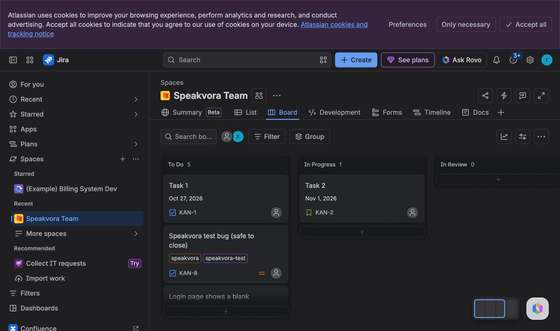
Step 4. Choose what happens automatically
Open the Your agent tab. Connecting Jira switches these on:
| When | What the agent does |
|---|---|
| A customer texts that something is broken (words like bug, error, crashes, freezes, glitch) | Creates a Jira bug or adds to the matching one, thanks the customer without promising a fix, tells your team in Slack or Teams |
| Your app or monitoring sends the event A bug is reported | Same, using the description your app sent |
| Jira moves a bug to Done (see Step 5) | Marks it Resolved on the Confluence page and tells your team |
Switch any of them off in the same place. Each one has a Test button that runs it in practice mode.
To link every new bug to a story, add the story key (for example BUG-100) to the workflow's Jira step.
Step 5. Tell the agent when a bug is resolved (optional)
This needs your agent's permanent address (Connect, Permanent address). Then:
- In the agent open Connect, Send events here, Jira status changes and press Save. It shows an address and a secret.
- In Jira open your project, Project settings, Automation, Create rule.
- Trigger: Work item transitioned. Action: Send web request. Paste the address, method POST, and add a header named
X-Speakvora-Tokenwith the secret as its value. - Body (custom data): the lines the agent shows you, which include the ticket key, summary, status and status category.
- Name and turn on the rule. When a ticket moves to a Done status, the agent updates the Confluence row.
What the Confluence page looks like
A page called Known issues (or the title you chose) in your space, with a table: ticket link, problem, status, number of reports, first reported, resolved, and "Workaround or fix (verified only)". The workaround column says "None confirmed" until someone on your team writes one. The agent keeps what your team writes and never overwrites it.
If something is wrong
- "Atlassian did not accept the email and token": use the email you sign in with, and a fresh token. The site must be the one where you use Jira.
- "The project was not found": the key is the capital letters in your tickets, and your account must be able to see that project.
- "No ticket type called Bug": type the name your project uses. The test lists the names.
- No Confluence page appears: check the space key, and that your account may create pages in that space.
- Two tickets for the same problem: the agent matches by the main words of the report. Very differently worded reports become separate tickets. Merge them in Jira.
All help guides · Every agent feature · AI receptionist by industry
Questions
What if this happens: "Atlassian did not accept the email and token"?
use the email you sign in with, and a fresh token. The site must be the one where you use Jira.
What if this happens: "The project was not found"?
the key is the capital letters in your tickets, and your account must be able to see that project.
What if this happens: "No ticket type called Bug"?
type the name your project uses. The test lists the names.
What if this happens: No Confluence page appears?
check the space key, and that your account may create pages in that space.
What if this happens: Two tickets for the same problem?
the agent matches by the main words of the report. Very differently worded reports become separate tickets. Merge them in Jira.